The same process for every plugin we sell.
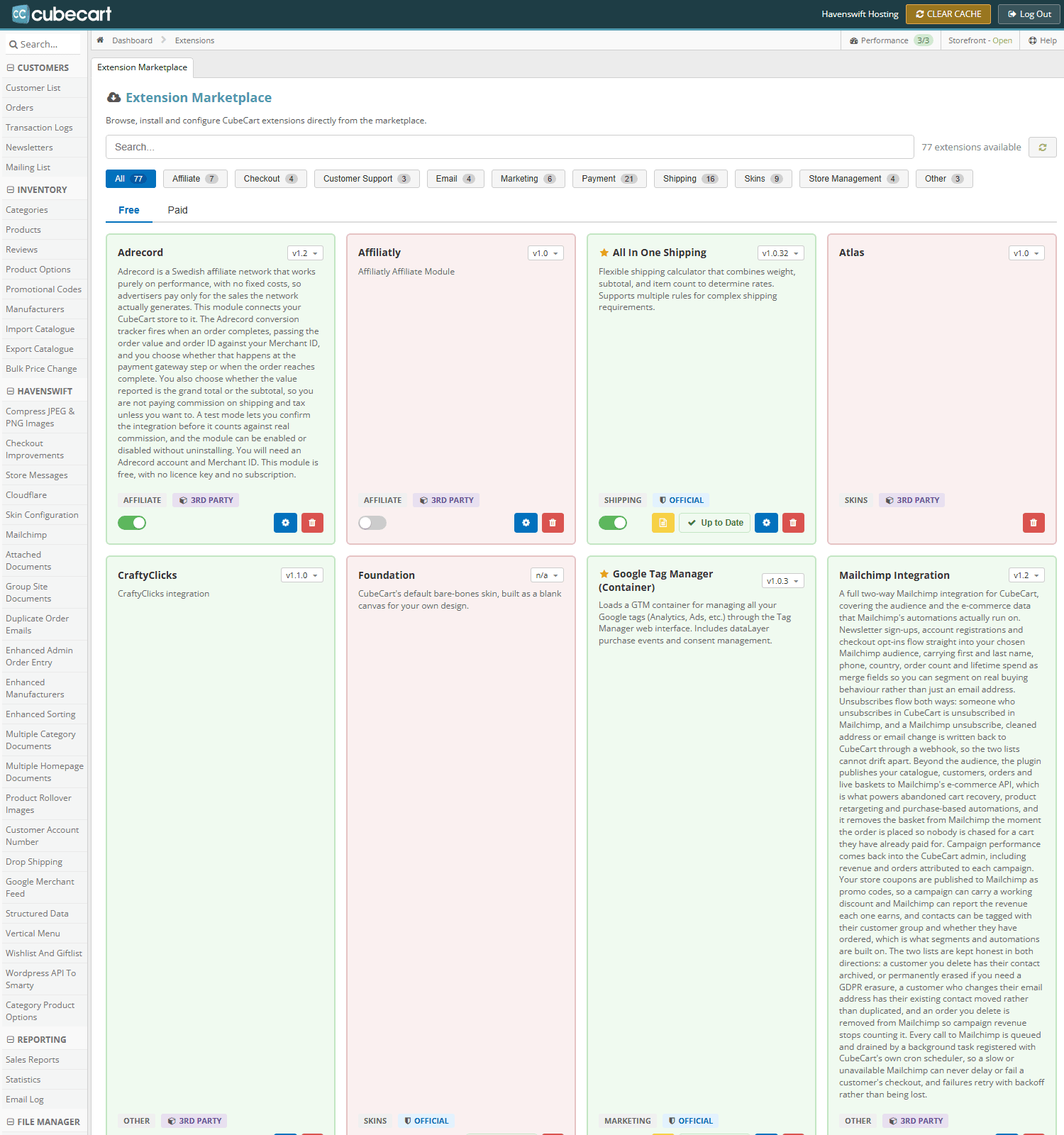
Manage Extensions in CubeCart admin. Each extension shows its version, an enable toggle and its own settings button
1. Download it
Log in to the client area, go to My Products & Services, and open the plugin. The current version is listed as a download, and the same files are in the Downloads section.
2. Install it
In your CubeCart admin, go to Manage Extensions and upload the zip. CubeCart unpacks it into the right place. If your host has PHP's zip extension disabled the upload will fail – unzip locally and upload the folder into modules/plugins instead, overwriting any existing folder of the same name.
3. Enable it
Find it in the plugin list and enable it. Some plugins add their own menu entry once enabled.
4. Enter the licence key
Open the plugin's settings and paste in the 16-character key from your client area. Take care to use the key for that plugin – a key from another one will appear to be accepted and then fail to validate, and because the other plugin may still be working you can spend a long time looking in the wrong place.
5. Check it validated
Reload the plugin settings. It should report the licence as active. If not, see Where your plugin licence key lives.
Upgrading later
Install the new version over the top the same way. Your settings and licence key are stored in the database and are not affected. Take a backup first, as with any change.
Installation service
If you would rather we did it, open a ticket with a store admin login and access to your hosting, and we will install and configure it.
